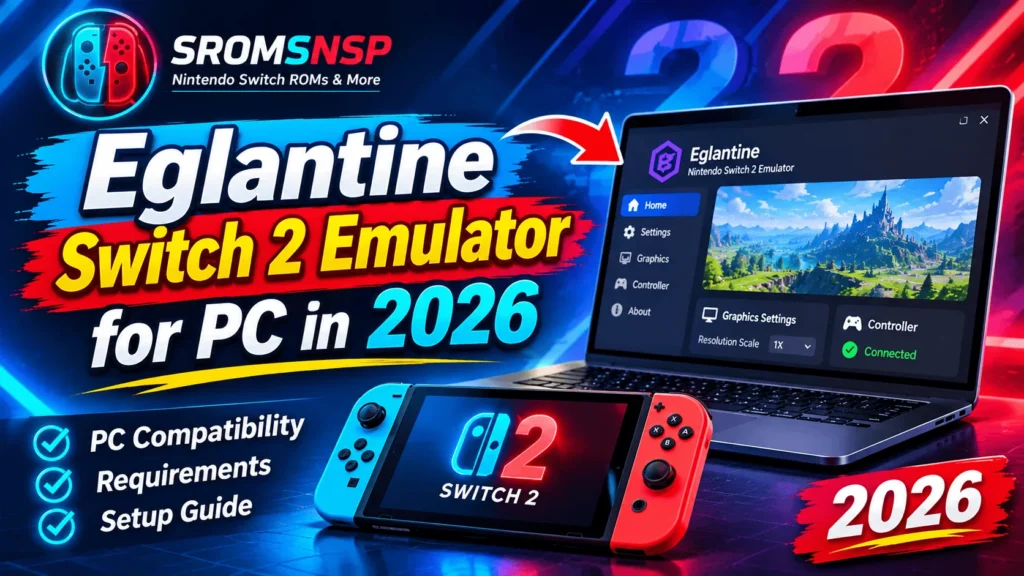
Nintendo Switch 2 emulation is becoming an interesting topic for PC gaming enthusiasts. As experimental emulator projects continue to develop, more users are searching for ways to understand how Switch 2 software works on Windows computers.
One project attracting attention is Eglantine, an experimental open-source Nintendo Switch 2 emulator. It is designed for desktop platforms and has attracted interest because of its early compatibility work and ongoing development.
However, it is important to understand that Eglantine is still experimental. A game appearing in a boot test does not mean it can run smoothly from beginning to end. Performance, graphical accuracy, and compatibility can vary considerably between builds and PC configurations.
In this guide, we explain what Eglantine is, its supported platforms, hardware considerations, reported game compatibility, setup basics, and common problems.
What Is the Eglantine Emulator?
Eglantine is an experimental, open-source Nintendo Switch 2 emulator project written in C++. Its project information describes support for Windows, Linux, and macOS.
The project traces its technical ancestry through earlier Nintendo Switch emulation projects, including Eden, Yuzu, and Sudachi.
Unlike a commercial PC game, Eglantine is an emulator application. It attempts to reproduce parts of the Nintendo Switch 2 environment so compatible software can run on computer hardware.
Some important points about Eglantine include:
- It is an experimental emulation project.
- It is designed for desktop operating systems.
- It is open-source software.
- Its compatibility depends on development progress.
- It does not include commercial games.
- New builds may introduce improvements or bugs.
The project is not affiliated with or endorsed by Nintendo.
Eglantine Emulator Features
Eglantine is still under development, so its features and compatibility may change between releases.
1. Windows Support
Windows users can investigate available Windows builds through the project’s release information. Check the operating system and processor architecture requirements before downloading.
2. Linux Support
The project also lists Linux builds. Package requirements may vary depending on the distribution, libraries, and system architecture.
3. macOS Support
Apple Silicon macOS builds are also listed in the project’s platform information. Users should check the specific macOS version and hardware requirements for the build they intend to use.
4. Open-Source Development
The project provides public source code and development information. This allows interested users and developers to examine the project and follow its progress.
5. Experimental Game Compatibility
Some community reports and development demonstrations show early game-booting progress. However, these results should not be interpreted as guaranteed playable performance.
Eglantine Emulator System Requirements
Because Eglantine is an experimental project, there is no universally reliable minimum PC specification that guarantees good performance.
The following table describes hardware considerations rather than official minimum requirements.
| Component | What to Consider |
|---|---|
| Operating System | Supported Windows, Linux, or macOS build |
| Processor | Modern 64-bit CPU |
| RAM | 16 GB or more is a sensible planning target |
| Graphics Card | Compatible GPU and graphics drivers |
| Graphics API | Check the requirements of the selected build |
| Storage | SSD recommended |
| Drivers | Updated GPU manufacturer drivers |
Processor Requirements
The processor handles many important emulation tasks. A modern CPU with strong single-core performance and multiple processing threads can help with demanding workloads.
Graphics Card Requirements
Graphics compatibility is especially important. The selected build may depend on particular GPU capabilities and graphics APIs.
Before installing, review the project’s current documentation for GPU requirements.
RAM Requirements
Memory usage can vary depending on the emulator, game, operating system, and background applications. Having sufficient RAM can help avoid memory-related slowdowns and crashes.
Storage Requirements
An SSD is useful for storing applications and game files. Keep enough free storage space for the emulator, its configuration, and any legally obtained software you are entitled to use.
Which Games Work With Eglantine?
Game compatibility is one of the most important things to investigate before trying an experimental emulator.
The project provides community compatibility information for titles including:
- Mario Kart World
- Pokémon Pokopia
- Donkey Kong Bananza
However, a compatibility report may refer only to a particular build, test environment, or stage of gameplay.
There is an important difference between a game that boots and one that is fully playable.
| Compatibility Stage | Meaning |
|---|---|
| Does Not Boot | The game fails to start |
| Initial Screen | The game displays a startup screen |
| Main Menu | The game reaches its menu |
| In-Game | Gameplay begins but may have serious issues |
| Playable | Gameplay works with manageable problems |
| Fully Compatible | The game works reliably with minimal issues |
Always check the specific emulator build and hardware used in a compatibility report.
Important: Compatibility information changes quickly. A game that fails in one build may work better in a later release, while another game may experience regressions.
How to Download Eglantine for PC
Before downloading, make sure you are using the correct project source.
A safe general approach is:
- Visit the project’s verified website or repository.
- Open its releases or builds section.
- Check the latest release information.
- Select the package for your operating system.
- Confirm the processor architecture.
- Read the release notes and installation instructions.
- Download the package from the verified project source.
Do not assume that every website offering an Eglantine download is an official source.
Avoid suspicious installers, modified packages, password-protected archives from unknown publishers, and files that ask you to disable security software.
How to Set Up Eglantine on Windows
The exact setup process can change between builds. Always follow the instructions published for your selected version.
Step 1: Prepare Windows
Before installing:
- Update Windows.
- Update your graphics drivers.
- Check available storage.
- Confirm your processor architecture.
- Review any required Windows dependencies.
Step 2: Download the Correct Build
Choose the Windows package from the project’s verified release channel.
Read the release notes carefully. Experimental builds may have different requirements or known limitations.
Step 3: Extract or Install the Application
If the project distributes a portable archive, extract it to a suitable folder.
If it provides an installer, follow the documented installation process.
Do not run files from unknown third-party repackaging websites.
Step 4: Review the Emulator Configuration
Open the application and review its available configuration options.
Depending on the build, these may include graphics, input, system, and storage settings.
Start with the recommended defaults before experimenting with advanced options.
Step 5: Connect a Compatible Controller
If controller input is supported in your build, connect a compatible gamepad and check the available input configuration.
Test the buttons and analog sticks before attempting to troubleshoot a game.
Step 6: Review the Game Compatibility Information
Use the project’s compatibility documentation to check whether your selected software has been tested.
Remember that the emulator does not include commercial Nintendo Switch 2 games.
Use only game backups and system files that you are legally entitled to use. Follow the project’s official documentation for any additional requirements.
Common Eglantine Emulator Problems and Fixes
Because Eglantine is experimental, users may encounter problems during installation or testing.
1. Eglantine Does Not Launch
Possible causes include missing dependencies, incompatible hardware, a damaged archive, or an unsupported operating system.
Try these checks:
- Verify that you downloaded the correct package.
- Review the official system requirements.
- Check for required Windows dependencies.
- Update your graphics drivers.
- Review the project’s troubleshooting documentation.
2. Black Screen When Starting a Game
A black screen may indicate a compatibility issue, graphics problem, or unsupported game configuration.
Check whether the game has a known compatibility report for your particular build.
3. Low FPS and Stuttering
Performance may depend on processor speed, GPU capabilities, memory, drivers, and the state of emulator development.
Try closing unnecessary applications and checking the documented graphics settings.
Avoid assuming that a high-end GPU alone will solve every performance problem.
4. Graphics Glitches
Missing textures, visual artifacts, and incomplete graphics are common issues in experimental emulation.
Check release notes and compatibility reports to determine whether the problem is already known.
5. Controller Not Detected
If the emulator does not recognize your controller:
- Confirm that Windows detects it.
- Test a different USB port.
- Check Bluetooth pairing.
- Review the emulator’s input settings.
- Restart the application after connecting the device.
6. Emulator Crashes During Gameplay
Crashes can result from incomplete compatibility, insufficient system resources, driver problems, or bugs in a particular build.
Check the project’s issue tracker and release notes before changing advanced settings.
Eglantine vs Other Nintendo Switch Emulation Projects
Eglantine is not the only name users may encounter when researching Nintendo Switch 2 emulation.
| Project | Main Focus | Important Note |
|---|---|---|
| Eglantine | Experimental Switch 2 emulation | Check current build status |
| Eden-NX2 | Early Switch 2 emulation work | Separate experimental branch |
| Lichii | Community-developed emulation work | Compatibility varies by build |
| NeXo2 | Experimental emulator development | Current commercial-game support is limited |
These projects have different development histories and capabilities. They should not be treated as interchangeable applications.
A project with a public download does not necessarily offer reliable commercial-game compatibility.
Is Eglantine Safe to Download?
The safest approach is to obtain the application from the project’s verified release source and inspect its documentation.
Keep these precautions in mind:
- Avoid unofficial download mirrors.
- Do not install suspicious repackaged files.
- Check release notes and project history.
- Do not disable antivirus protection just to run an unknown installer.
- Be cautious of websites advertising guaranteed full compatibility.
- Do not provide personal information to suspicious download pages.
An emulator’s experimental status also means that users should expect bugs and occasional instability.
Is the Eglantine Emulator Legal?
The legality of emulator software and the use of copyrighted game or system files are separate questions.
The rules depend on your jurisdiction and the specific software involved.
Keep the following points in mind:
- Do not download unauthorized copies of copyrighted games.
- Do not distribute proprietary firmware or encryption keys.
- Use only software and system files you are legally entitled to use.
- Review applicable copyright and anti-circumvention laws.
- Read the emulator project’s license and terms.
Eglantine does not grant permission to obtain or distribute copyrighted Nintendo content.
Frequently Asked Questions
Is Eglantine a Nintendo Switch 2 emulator?
Yes. Eglantine describes itself as an experimental Nintendo Switch 2 emulator for desktop platforms, including Windows, Linux, and macOS.
Is Eglantine available for Windows 11?
The project lists Windows builds. Check the current release documentation for the supported Windows versions and hardware requirements.
Is Eglantine free?
The project describes itself as free and open-source software under the GPLv3-or-later license.
Can Eglantine run Mario Kart World?
The project provides community compatibility information for Mario Kart World. Results depend on the emulator build and test hardware, and a boot report does not guarantee smooth gameplay.
Can Eglantine run Donkey Kong Bananza?
There are public compatibility reports associated with Donkey Kong Bananza. Check the specific build and testing details before expecting it to run properly.
Does Eglantine work on macOS?
The project lists macOS builds, including Apple Silicon support. Check the requirements for the specific release before installation.
Does Eglantine include Nintendo Switch 2 games?
No. The emulator application does not provide commercial games. Users must comply with applicable laws when obtaining and using game software.
Is Eglantine better than Eden-NX2?
They are related but distinct project names and development branches. Compare their current builds, compatibility information, and release notes instead of assuming one is universally better.
Can Eglantine run every Nintendo Switch 2 game?
No. It is experimental, and compatibility varies between games and releases.
Final Thoughts
Eglantine is an interesting development in the emerging Nintendo Switch 2 emulation scene. Its open-source approach and desktop platform support make it worth following for users interested in emulation technology.
However, it is still experimental. Compatibility reports should be checked carefully, and users should not expect every game to run smoothly.
If you want to investigate Eglantine, start with the verified project documentation, check your PC hardware, and use only software and system files you are legally entitled to use.
Disclaimer: This article is for educational and informational purposes. SROMSNSP does not host or distribute copyrighted Nintendo games, firmware, encryption keys, or unauthorized software copies. Users are responsible for complying with applicable copyright laws and software terms.